
If Logitech had launched the MX Master 4 a few months ago, I would have happily declared it my favourite productivity mouse.
While I’m new to the MX Master series, Logitech’s fourth generation of the mouse makes it clear why it’s a favourite among office workers. The mouse feels great, has a ton of helpful tools you might not find on other mice, and is even a winner ergonomically. At least, it is if your wrists haven’t already been blessed by a vertical mouse.
Back in May, I tried out Razer’s vertical gaming mouse and instantly fell in love. And now that I’ve made the leap to vertical mice, going back to a horizontal orientation to try out the MX Master 4 honestly sucked. For the most part, though, I’ll chalk that up to personal preference — vertical mice aren’t necessarily better, I just find them much more comfortable for my wrists. And if Logitech ever launched a vertical take on the MX Master 4… well, let’s just say it’d have a home on my desk.
Super scroller
Orientation aside, there’s a lot to like about the MX Master 4. And a few things that I think aren’t great. But let’s start with the good. First, the mouse has great form and function. The shape fits my hand well, making it quite comfortable, and generally, it looks nice.
Logitech highlighted that it designed the MX Master 4 to be more sustainable and comfortable. On the sustainability side, the MX Master 4 features low-carbon aluminum in the thumbwheel, 100 per cent recycled cobalt in the battery, and about half the plastic is recycled (exact percentages differ based on the colour). On the comfort side, Logitech said it tweaked the position of the thumbwheel to reduce hand stress.
The MX Master 4 has tons of side buttons — even the rubberized thumb rest is a button.
Speaking of the thumbwheel, it’s one of my favourite features on the MX Master 4. I haven’t used any other mice with a feature like that, and it’s super handy for scrolling horizontally. That said, it’s not exactly a must-have feature. After years of using other methods for horizontal scrolling, such as holding down the Control key, I had a hard time breaking the muscle memory to use the thumbwheel.
The MX Master 4’s thumbwheel isn’t the only scroll wheel worth mentioning — the vertical scroll wheel is also great, thanks to Logitech’s MagSpeed tech. This isn’t new or exclusive to the MX Master 4, but it was a new feature to me and one I wanted to mention. The MX Master 4 offers two modes for scrolling: a clicky, tactile scroll or a smooth, fast scroll, with a button to swap between modes. Most mice have something like this, but Logitech takes it a step further; the MX Master 4 can switch between modes automatically based on how fast you scroll. I typically prefer the tactile scroll option, but occasionally like to use the faster scrolling when I need to navigate lengthy documents, and MagSpeed gives me the best of both without forcing me to switch between modes.
My only real gripe with MagSpeed is that if I get the wheel spinning and then move my cursor into another window, it’ll scroll that window too — sometimes way too far, especially if I really crank the scroll wheel. But there’s an easy fix for that: just turn off the option to scroll inactive windows (typically found in Windows’ mouse settings).
Haptics feel good, but don’t add to the experience
There are a couple other new features worth highlighting with the MX Master 4. Logitech says the mouse sports two times stronger connectivity thanks to optimized antenna placement and a new high-performance chip. And the other big new feature is haptics.
For me, this is where we transition into the less-good part of the MX Master 4. I say “less-good” because the haptics aren’t bad — they actually feel great, which can be tough to pull off. My issue with the haptics is that they don’t add anything meaningful to the mouse experience.
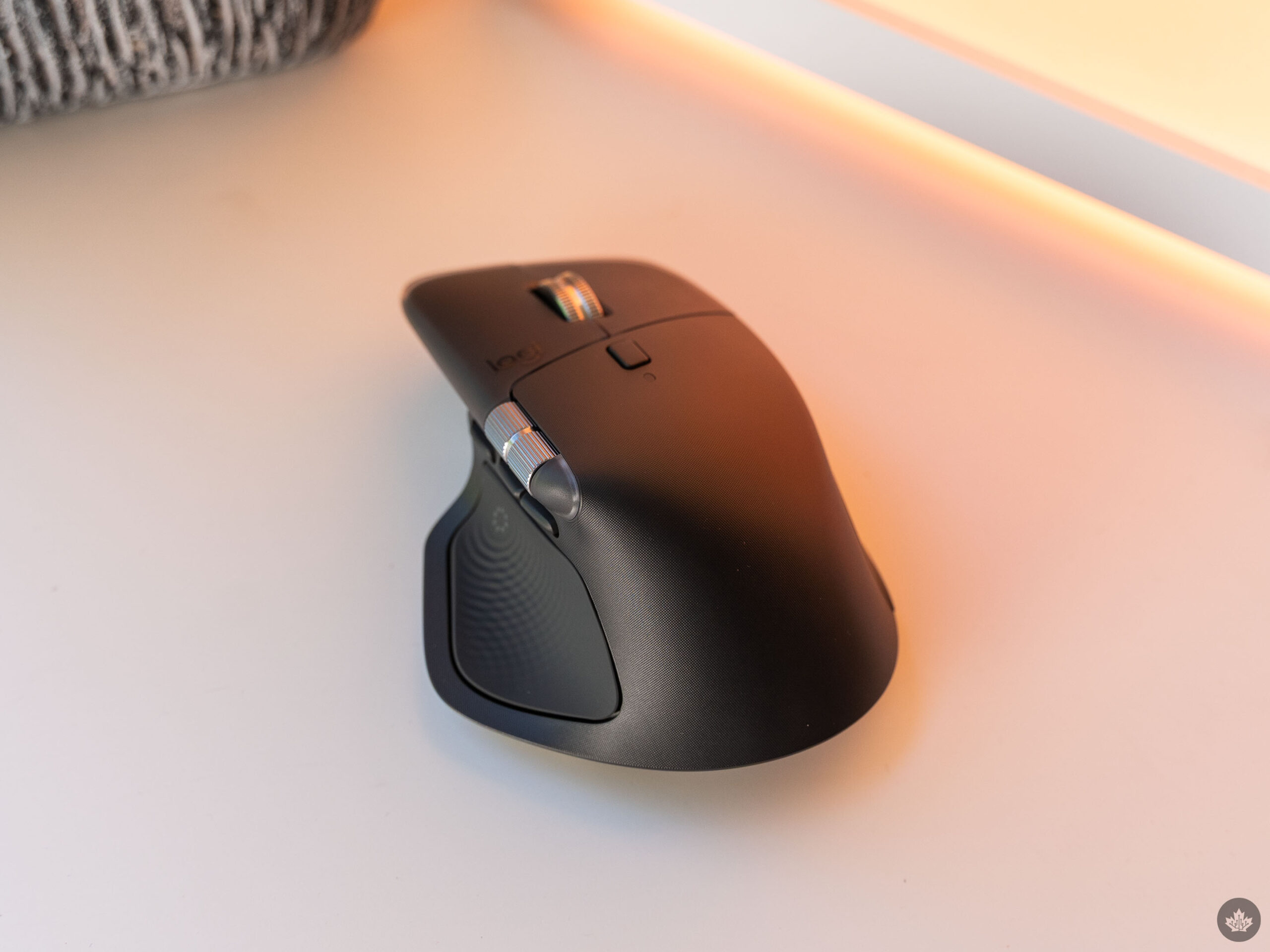
In my time testing out the mouse, the haptics only surfaced in a handful of limited interactions. For example, when the mouse wakes from sleep, it gives my hand a little bump to let me know it has reconnected to my computer. That’s fine, but not exactly revolutionary — I can tell when the mouse connects because the cursor starts moving on my screen. Logitech says the mouse also offers haptic feedback for scrolling, navigation, and selection, but either my mouse didn’t vibrate for these interactions, or it was so subtle that I didn’t notice it. Either way, not great.
The thing is, I think haptics in mice is actually a good idea, just not in a productivity-focused mouse like the MX Master. Put haptics in a gaming mouse and I’m sold. I’ve preferred mouse and keyboard for gaming for years, but one thing I miss from controllers is vibration — a gaming mouse from Logitech with haptics would be much more compelling.
Actions Ring is a handy software add-on
Finally, the MX Master 4 sports a new ‘Actions Ring’ feature that lets users create a custom ring of shortcuts to common apps and actions they use on their PC. At a press of a button on the mouse, a ring of shortcuts appears on screen. Users can then move the mouse to select a shortcut.
By default, options include launching Logitech’s Options+ app, AI tools like Microsoft Copilot or ChatGPT, apps, taking a screenshot, and more. Plus, users can customize these actions from the aforementioned Options+ app to suit their needs — something I’d recommend, since many of the default actions already have keyboard shortcuts, making the Actions Ring feel redundant.
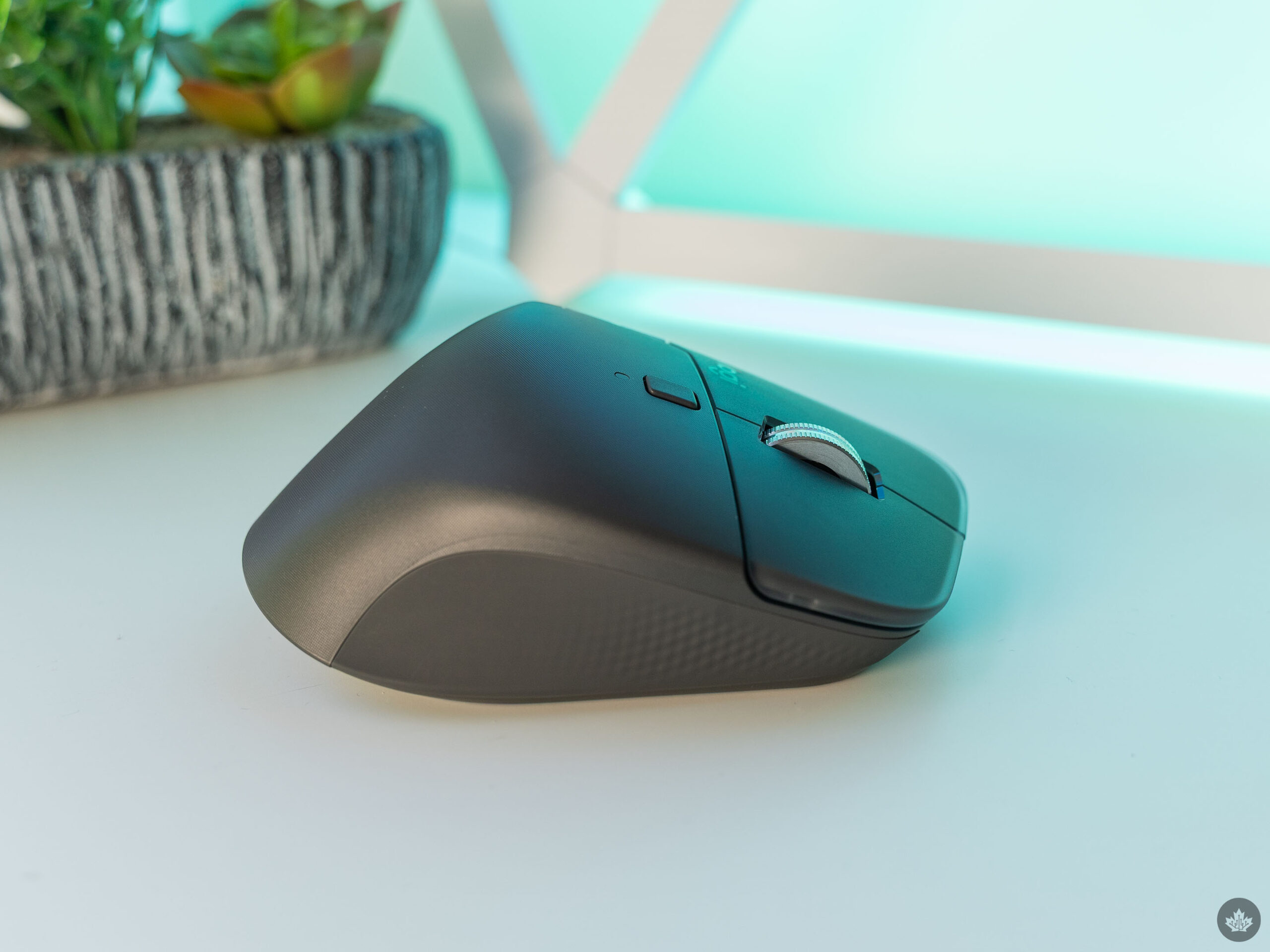
Overall, the MX Master 4 is a solid productivity mouse with tons of features and options to suit many different workflows. I’d highly recommend it to anyone who works a desk job and spends a lot of time in front of a screen. It’s comfortable, customizable, and ultimately improves the working experience. While the haptics are cool, I wouldn’t buy the mouse just for that feature.
My only wish is that Logitech made a vertical version of the MX Master 4.
The MX Master 4 is available in Canada on September 30, starting at $159.99. The mouse will be available in two colours in Canada, Graphite Charcoal (pictured in this review) and Black.
It’s worth noting that there is also a Mac version of the MX Master 4, but there are only two differences between them. First, the Mac variant doesn’t come with a USB-C wireless dongle, which means you’ll need to use Bluetooth connectivity instead. The second difference is colour, with the Mac version offering White Silver or Space Black options.
MobileSyrup may earn a commission from purchases made via our links, which helps fund the journalism we provide free on our website. These links do not influence our editorial content. Support us here.